How to: Move a TeamSpeak 3 Server from Linux to Windows

There are lots of tutorials online that show you how to move, or migrate if you will, your TeamSpeak 3 server from Windows to Linux, but there’s no guide that shows the other way around. One could say that this process is simply the same, only executed backwards. However, since most of them are outdated, for example most guides let you execute SQL queries to replace all the linux directory standards with windows standard which is no longer needed, I felt the need to write this up-to-date tutorial, in which I will explain how to move a Teamspeak 3 server from Linux to Windows. The process is no rocket science, so don’t worry.

In this particular tutorial, I will be moving TeamSpeak 3.0.10.3 on Ubuntu Server 12.04.5 LTS to TeamSpeak 3.0.11 on Windows Server 2008 R2. You can even migrate between versions, i.e. TeamSpeak 3.0.10.3 to TeamSpeak 3.0.11. That’s right, there’s no need to do an in-place update before you can migrate…. Now, let’s get going!

First, we need to copy the following files from our TeamSpeak 3 Linux server to our new Windows machine:
licensekey.dat – Only applicable if you own a TeamSpeak 3 license.
query_ip_whitelist.txt – Whitelisted IPs for the query interface
query_ip_blacklist.txt – Blacklisted IPs for the query interface
files/ – Any Icons, Avatars and files that were uploaded to the server. Be sure to copy the entire folder including any subfolders and files inside.
ts3server.sqlitedb – The database, this file is the most important one and contains all the information about virtual servers, users, permissions, channels, groups etc. All Settings of the server instance and its virtual servers are contained in this file.
Source: https://support.teamspeakusa.com/index.php?/Knowledgebase/Article/View/315/16/i-want-to-move-my-server-to-another-machine-which-files-should-i-copy


Hold your horses!
In my introduction above, I mentioned that you can migrate between TeamSpeak versions withouth having to do an in-place update before. However, this *only* holds if you’re using a SQLite database, which is the case by default.
This is because as of TeamSpeak Server 3.0.11, the MySQL database plugin has been replaced by a MariaDB plugin. Which means that if you were using a MySQL database for your TeamSpeak server, you need to migrate it to MariaDB, else your database will be incompatible with the latest TeamSpeak Server version.
As SQLite is used by default, this is outside the scope of my tutorial and thus I will not be covering this. Here’s a free hint though: Read doc/update_mysql_to_mariadb.txt for instructions on how to update.  Also note that the default character set for the database is now ‘utf8mb4’, which means the server needs to be at least MySQL 5.5.3 or MariaDB 5.5.
Let’s continue :)


1) Login to your Linux server, navigate to your TeamSpeak 3 installation folder and copy the files listed above to your new Windows machine using your favorite method, i.e. flash-disk etc, to a temporary directory, for example C:\TS3Migration

2) Login to your Windows machine and download the latest available TeamSpeak 3 server version for your platform, i.e. 32-bit or 64-bit from: http://www.teamspeak.com/?page=downloads

3) Unzip the contents to a folder of your choice, for example C:\teamspeak3-server_win64

4) Paste the files you’ve copied earlier from your TeamSpeak 3 Linux server to the folder you used in step 3.

5) Start your TeamSpeak 3 Server by running the ts3_server.exe file.

6) Done! Your TeamSpeak 3 Server should now be reachable at the new IP address of your Windows machine and all settings should be exactly the same!

That wasn’t so hard, was it :) ?
 

How to: Enable printing to USB/Network printers for legacy DOS/Windows 95 & 98 programs

Have you ever faced the problem where a legacy DOS or Windows 95 & 98 runs perfectly on Windows XP/Vista/7/8, with or without compatibility mode, but refuses to print?
This is because legacy DOS or Windows 95 & 98 programs expect your printer to be connected to a LPT1 port, which is usually not the case anymore nowadays. If you want to enable printing to an USB or Network Printer for these legacy DOS or Windows 95 & 98 programs, follow these steps:

1) First, make sure you can print from within Windows to the desired printer, by printing a test page.

2) Next, go to Control Panel –> Printers
All of your printers should be listed, including the printer you want to set up for DOS printing.

3) Right-Click on the name of the printer that you want to set up for DOS printing and choose “Properties” from the pop-up context menu.

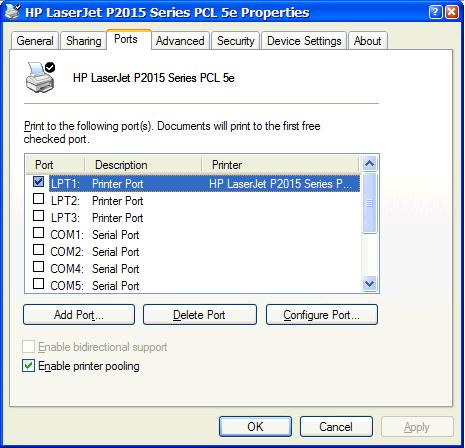
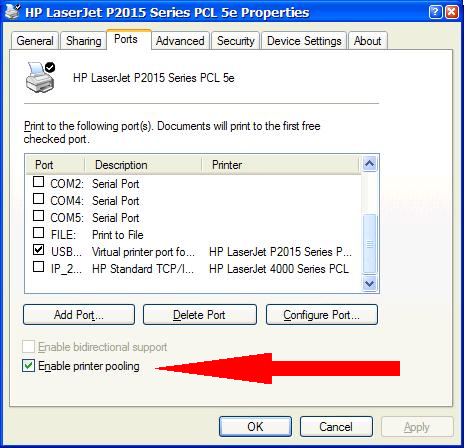
4) Click on the “Ports” Tab at the top of the Printer Properties Window.

5) Make a note of the exact name of your current printer port.

6) Select the “Enable Printer Pooling” checkbox. i.e. be sure that the box is checked.

7) Scroll up and/or down through all of your listed ports and click the “LPT1” port to place a checkmark in it.
Note: You should now have both LPT1 and your default printer port (from step 5) selected

8) Click “Apply” and “Ok”.

There you go! You should now be able to print from your  legacy DOS/Windows 95 & 98 programs to your USB/Network printer
The above steps essentially trick Windows to act as if the USB/Ethernet printer is connected to LPT1.
No need to use expensive third party tools such as Printfil or DOS2USB… this will do the trick as well!

How to: Setup your USB printer with the Arcadyan VGV7519 / Experia Box v8

The Arcadyan VGV7519, also known as the KPN Experia Box v8, features an USB port, which can be used to turn your USB printer into a network printer. However, simply connecting your USB printer the USB port onto the router is not enough; Windows will not recognize the printer as a network printer. Instead, you have to install the printer manually, as if it was connected as a local printer. In this guide, I’ll explain how to setup your USB printer with the Arcadyan VGV7519 / Experia Box v8 and how to connect to your printer.

First, make sure your USB printer is connected to the USB port of your router and power on your printer.

Secondly, open a webbrowser and go to the web interface of your router by entering the IP address of your router into your web browser’s address bar. If you’re unsure what the IP address of your router is, try the default IP which is 192.168.2.254. If that doesn’t work, i.e. the web interface of your router does not show up, you can find it’s IP address by open the Network and Sharing Center in the Windows Control Panel;
Click the name of your Internet connection, in my case Wireless Network Connection (TELUS2410).

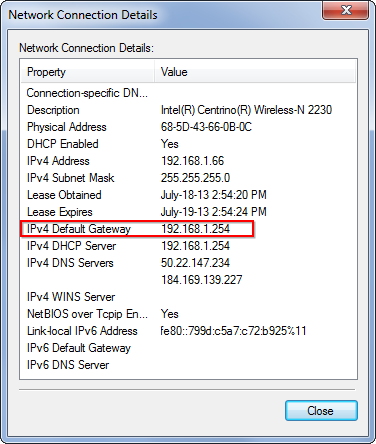
Click the Details button to view more information about the connection.

Look for the IPv4 Default Gateway IP address in the details window. Type this IP address into your web browser’s address bar.

Type this IP address into your web browser’s address bar. The router’s web interface should now show up. Login using the administrator password, which is default either ‘admin’, ‘1234’ or blank (i.e. do not fill in anything).

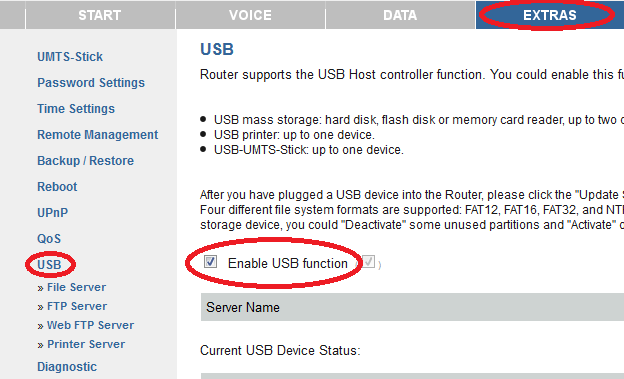
Once logged in to the router’s web interface, go to Extras –> USB –> Enable USB function

prnt1

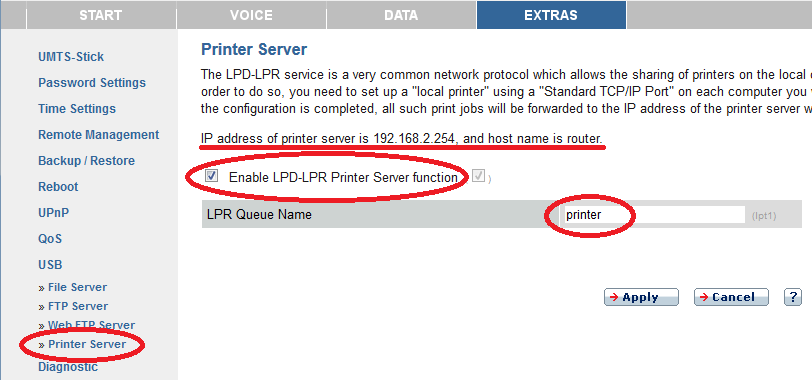
Next, go to ‘Printer Server’ and check whether the Enable LPD-LPR Printer Server function  is enabled. Also take note of the LPR queue name, which is ‘printer’ by default.

prnt2

The web interface already reveals a little bit what we’re going to do next, as it says: “In order to do so, you need to set up a “local printer” using a “Standard TCP/IP Port” on each computer you wish to print from. The IP address of printer server is 192.168.2.254, and host name is router.” Let’s get going!

  1. Choose Control Panel from the Start menu.
  2. Double-click Printers.
  3. Click on Add a printer in the menu bar.
  4. Click on Add a local printer.
  5. Select Create a new port. Select Standard TCP/IP port from the drop-down menu and click Next.
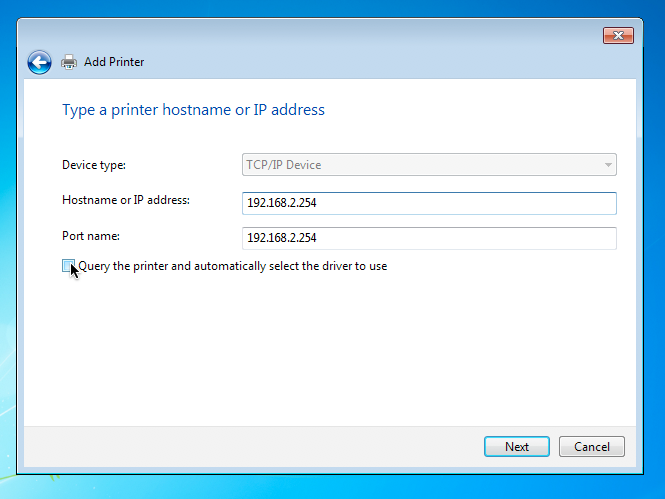
  6. In the Hostname or IP Address field, fill in the IP Address of your router. This is the same IP address you’ve entered earlier in your web browser to visit the web interface of your router, by default 192.168.2.254
    The Port name field will automatically complete.
    De-select the checkbox for the Query the printer and automatically select the driver to use option and click Next.
    print4
  7. Windows will now detect the remote host. This could take several minutes.
  8. You will now be prompted to configure the TCP/IP port.
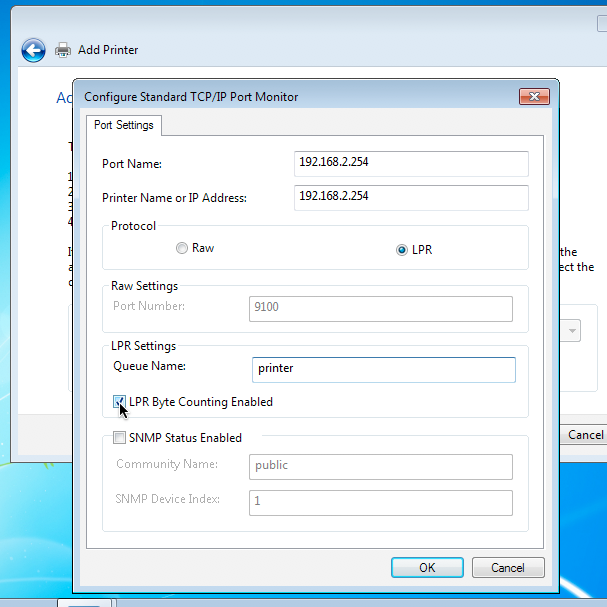
    Select Custom and click Settings… to open the configuation dialog.
  9. Select LPR as the Protocol
    Provide the Queue Name from your router’s web interface, which is ‘printer’ by default.
    Check the LPR Byte Counting Enabled option, and make sure that SNMP Status Enabled is unchecked.
    Click OK.
    print5
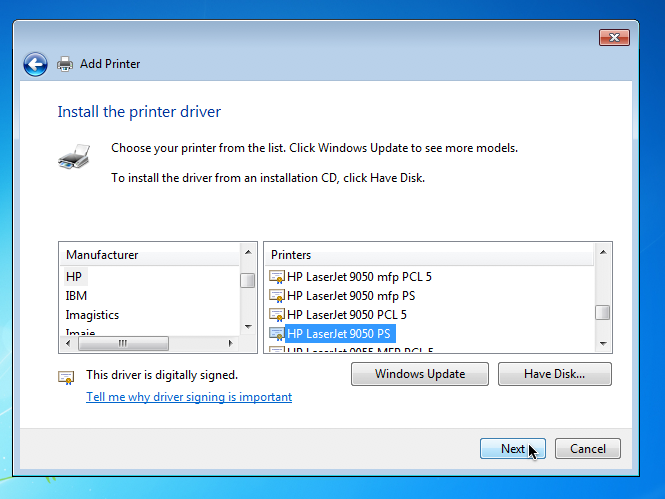
  10. Update your printer drivers from Microsoft by first selecting the Windows Update button before selecting a printer model.
    This could take several minutes.
  11. Select the driver appropriate for the model of printer being installed. After selecting the driver from the list, click Next.
  12. In case Windows detects that a driver is already installed for this printer, click the bullet next to Use the driver that is currently installed (recommended)
  13. Enter a printer name that you would like to use and click Next.
  14. Make sure the bullet is selected beside Do not share this printer
  15. Click to put a check mark beside of Set as the default printer (if you do wish to make it your default printer)
  16. Click Finish. Your printer should now be set up and ready to use.
Scroll to Top